If you’ve ever used apt on Ubuntu, brew on macOS, or choco on Windows, you already understand the appeal of a package manager. Type a command, get software — no browser, no wizard, no “next, next, finish.” Winget is Microsoft’s answer: a first-party, built-in package manager for Windows 10 and Windows 11.
What Is Winget?
Winget (Windows Package Manager) is an open-source CLI tool developed by Microsoft. Introduced in 2020, it is now pre-installed on Windows 11 and recent Windows 10 builds. It lets you install, upgrade, search, and remove software directly from your terminal using a centralized package catalog hosted on GitHub.
The package repository — microsoft/winget-pkgs — is community-driven and contains over 5,000+ packages, including popular developer tools, browsers, IDEs, utilities, and more.

Winget vs. Other Package Managers
| Feature | Winget | Chocolatey | Scoop | Homebrew (WSL) |
|---|---|---|---|---|
| Built into Windows | ✅ Yes | ❌ No | ❌ No | ❌ No |
| Open source | ✅ Yes | Partial | ✅ Yes | ✅ Yes |
| Package count | 5,000+ | 9,000+ | 3,000+ | 7,000+ |
| Installs system-wide | ✅ Yes | ✅ Yes | User-only | User-only |
| GUI available | ✅ WinGet UI | ❌ | ❌ | ❌ |
| Official Microsoft support | ✅ Yes | ❌ | ❌ | ❌ |
Choose winget when:
- You want a zero-setup, built-in solution
- You manage Windows machines at scale (integrates with Intune / MDM)
- You want to script app installs for a new PC setup
- You prefer official Microsoft tooling
Consider alternatives when:
- You need a larger package catalog → Chocolatey
- You want portable, isolated installs without admin rights → Scoop
- You’re already inside a WSL/Linux environment → Homebrew
Installation
Windows 11: Winget is pre-installed. Verify by opening any terminal and running:
| |
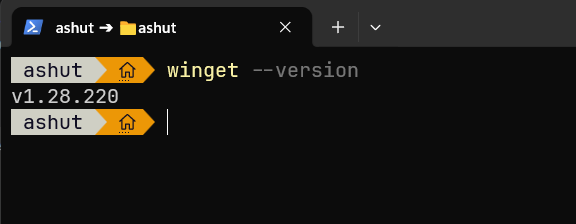
Windows 10: Install via the Microsoft Store — search for App Installer, or grab the latest release from the winget-cli releases page.
Core Commands
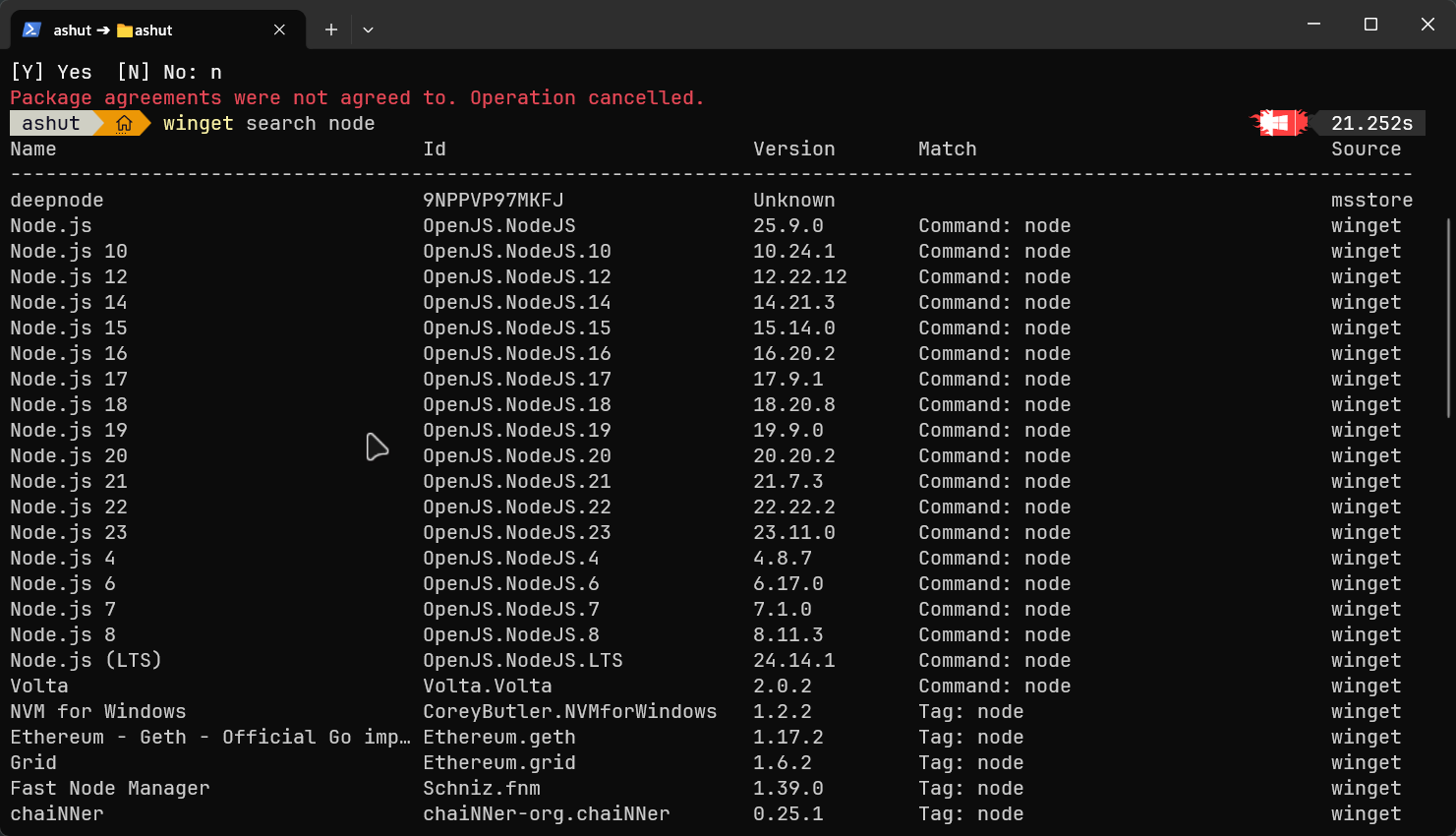
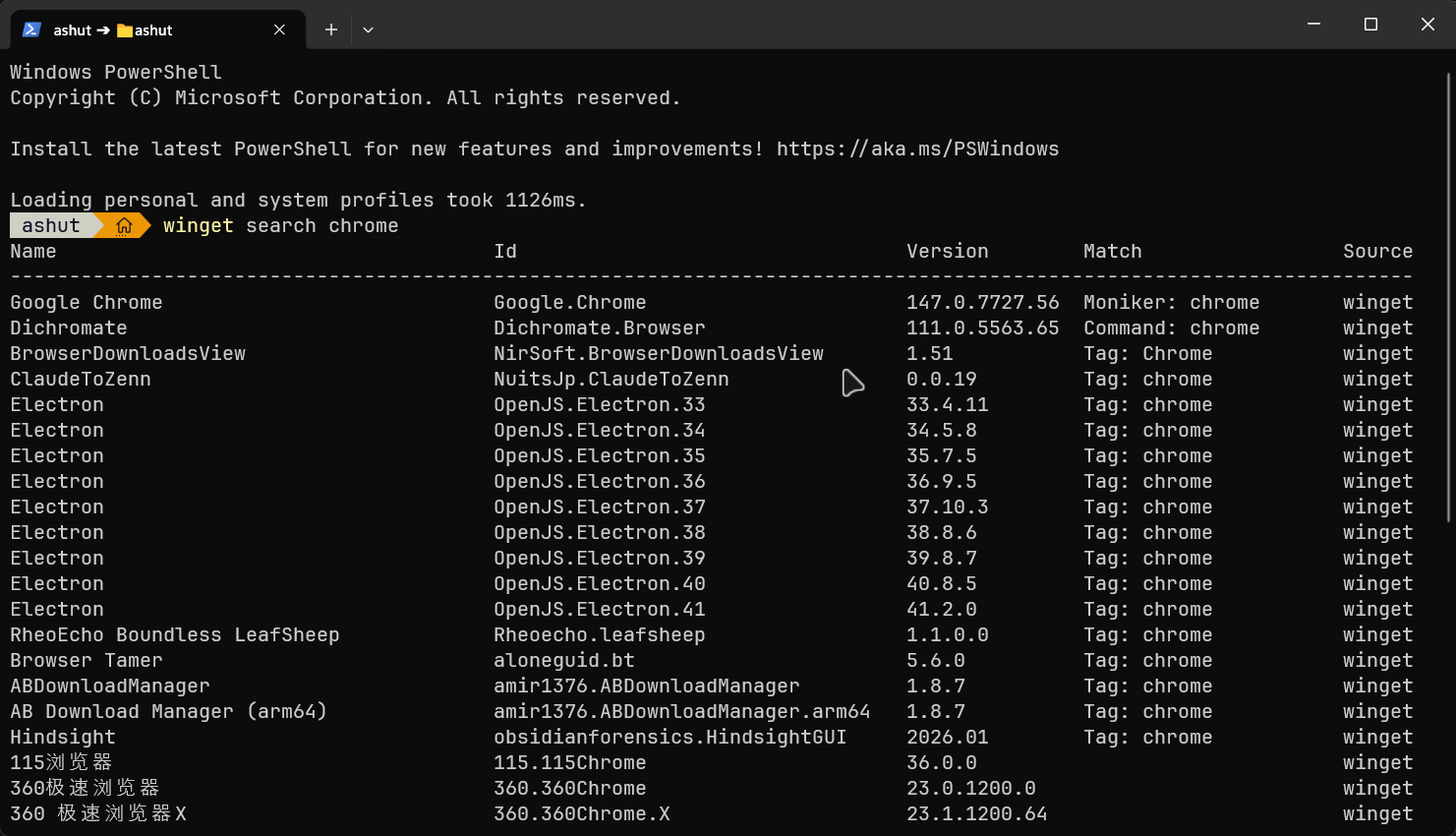
Search for a Package
| |
Example:
| |
Name                    Id                         Version   Source
-----------------------------------------------------------------------
Visual Studio Code      Microsoft.VisualStudioCode 1.88.0    winget
VSCodium                VSCodium.VSCodium          1.88.0    winget
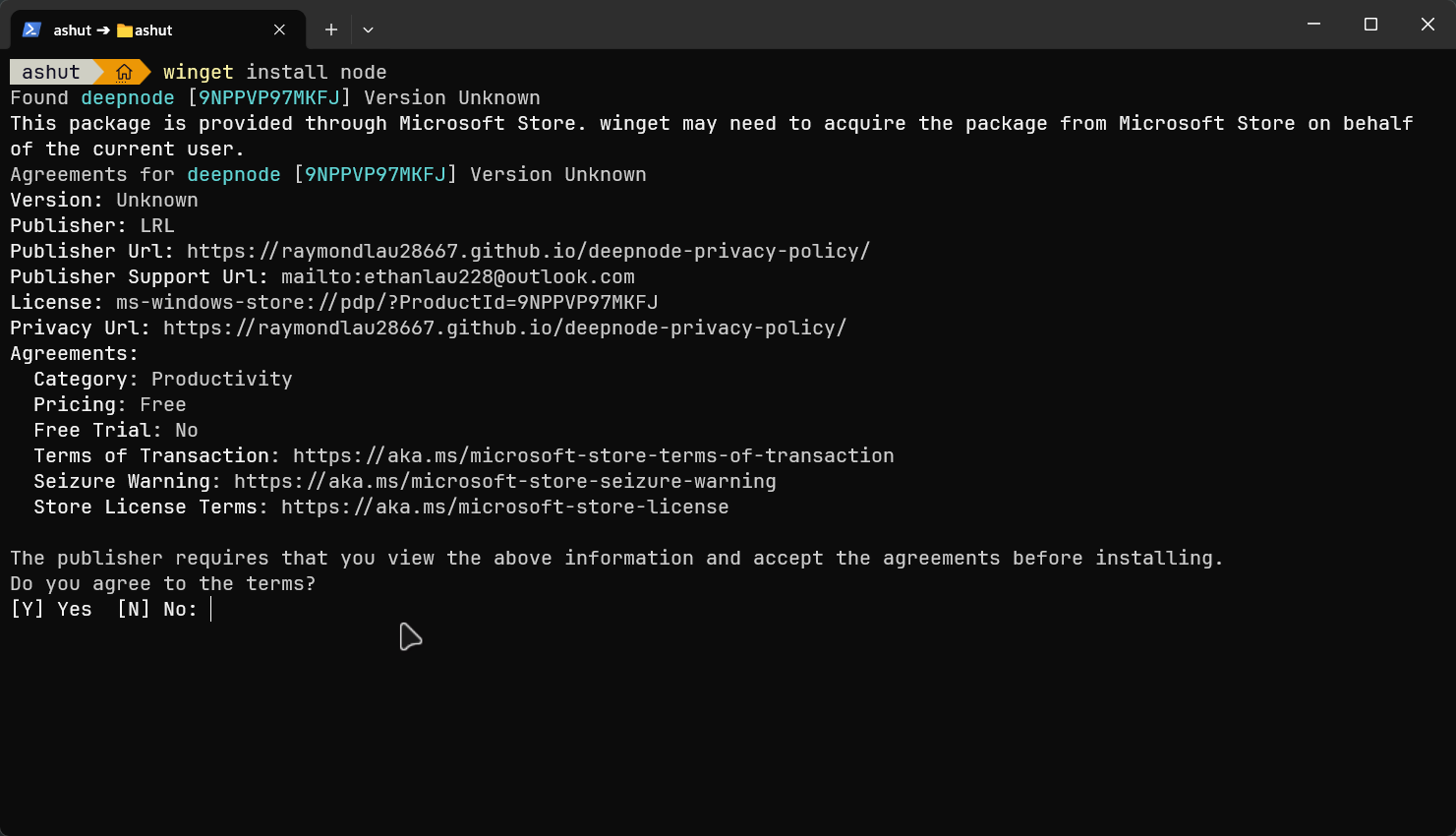
Install a Package
| |
Examples:
| |
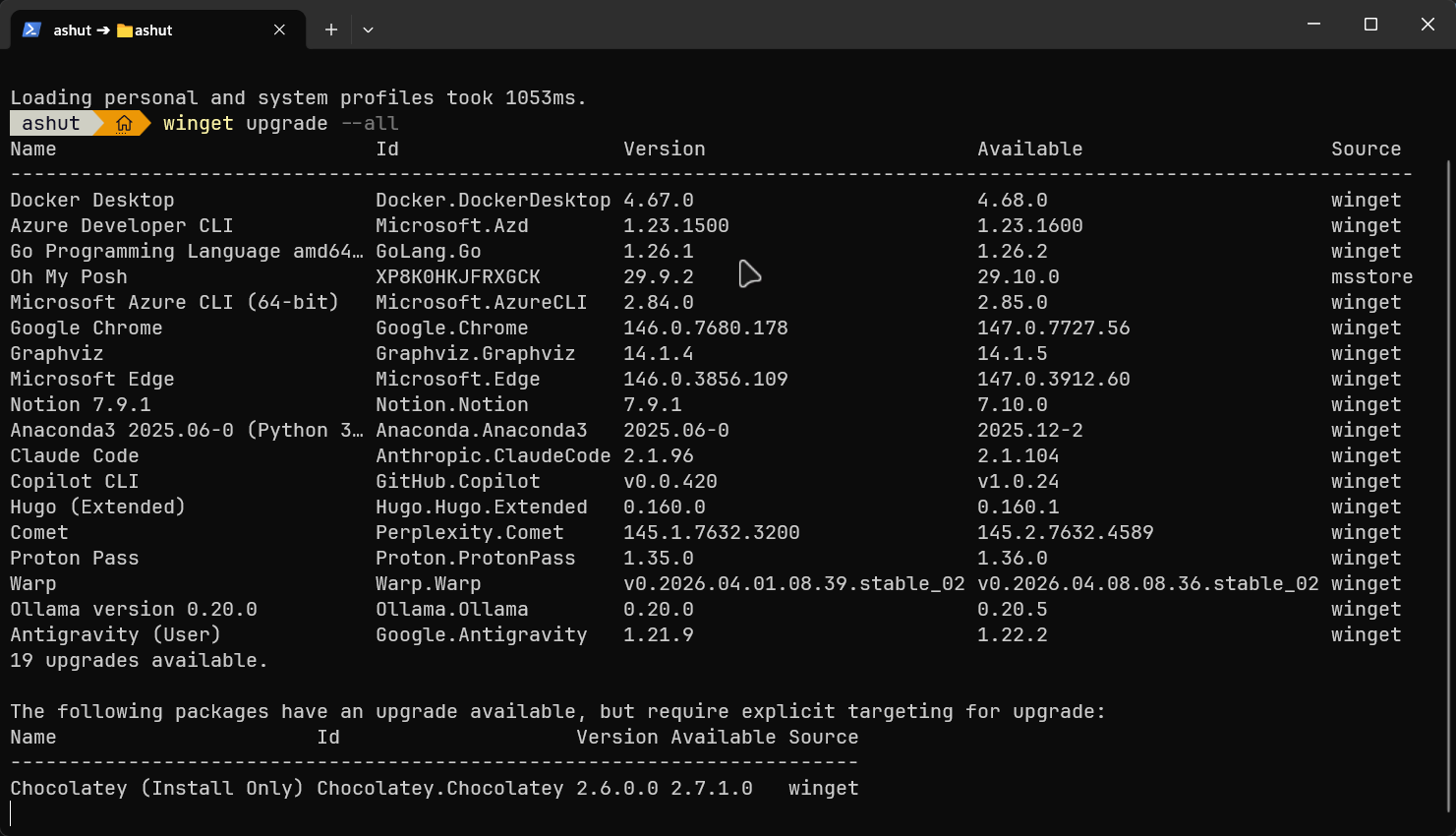
Upgrade Packages
| |
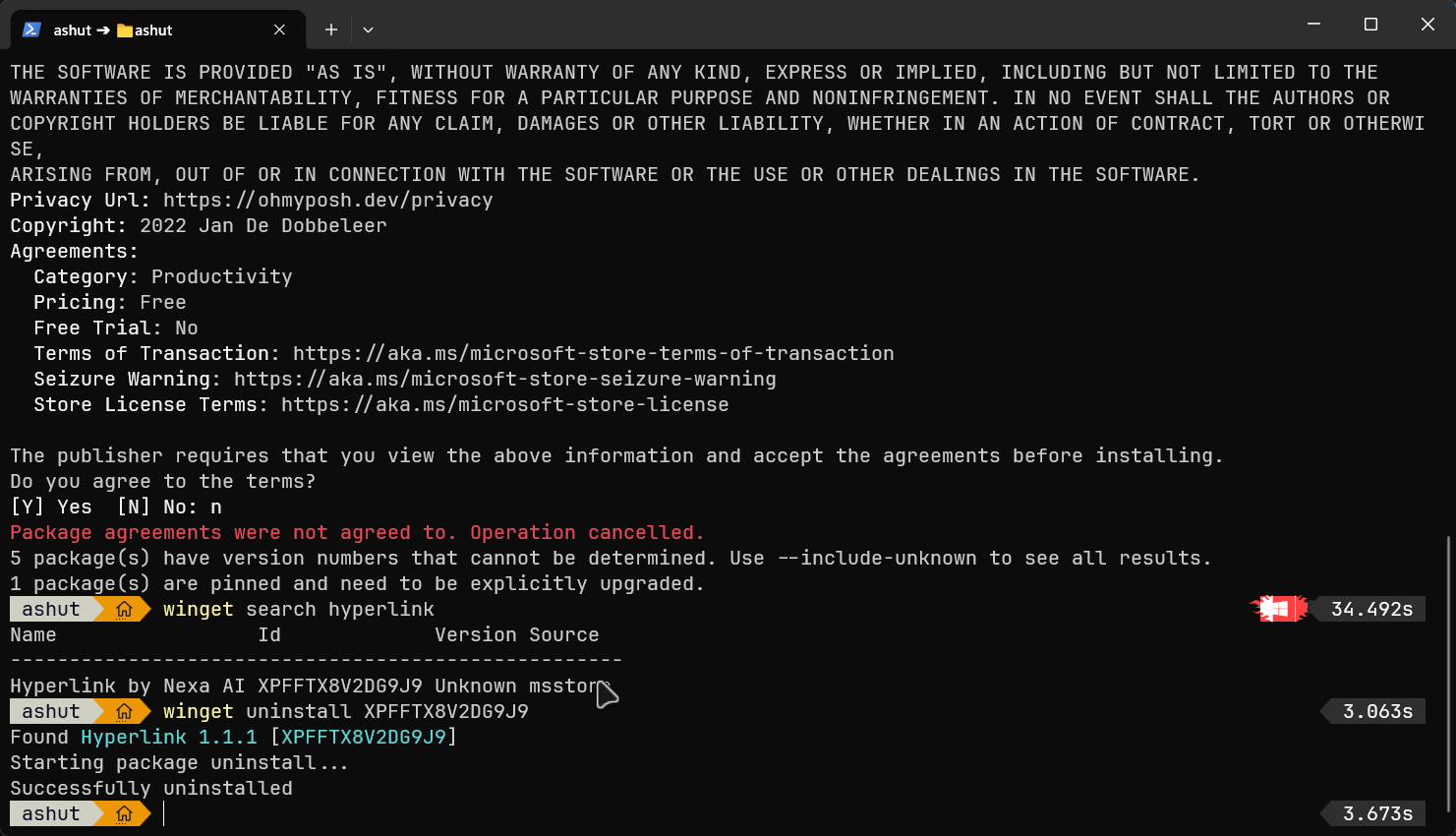
Uninstall a Package
| |
Example:
| |
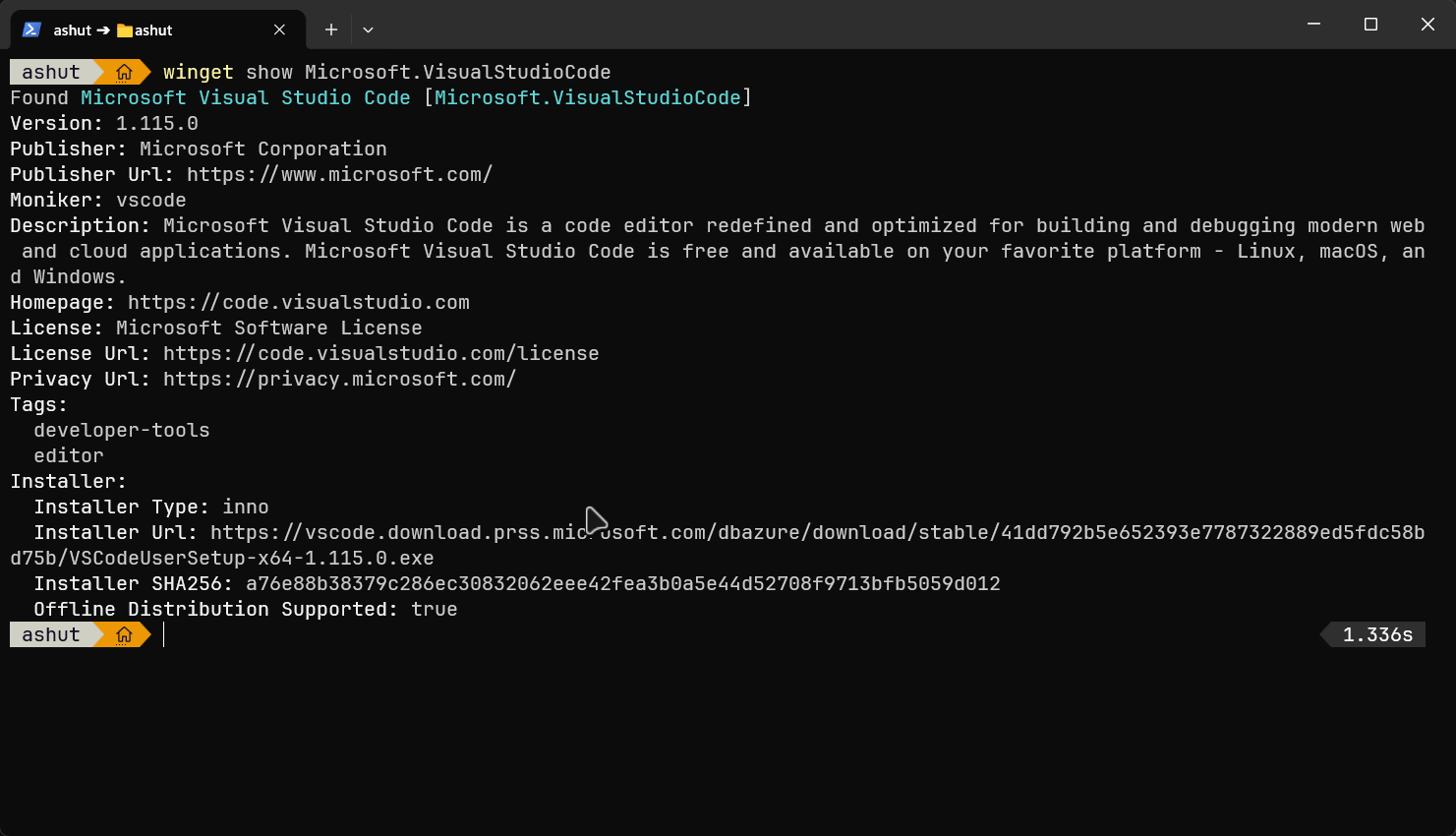
Show Package Details
Get detailed info about a package before installing:
| |
Outputs the publisher, license, description, homepage, install type, and available versions.
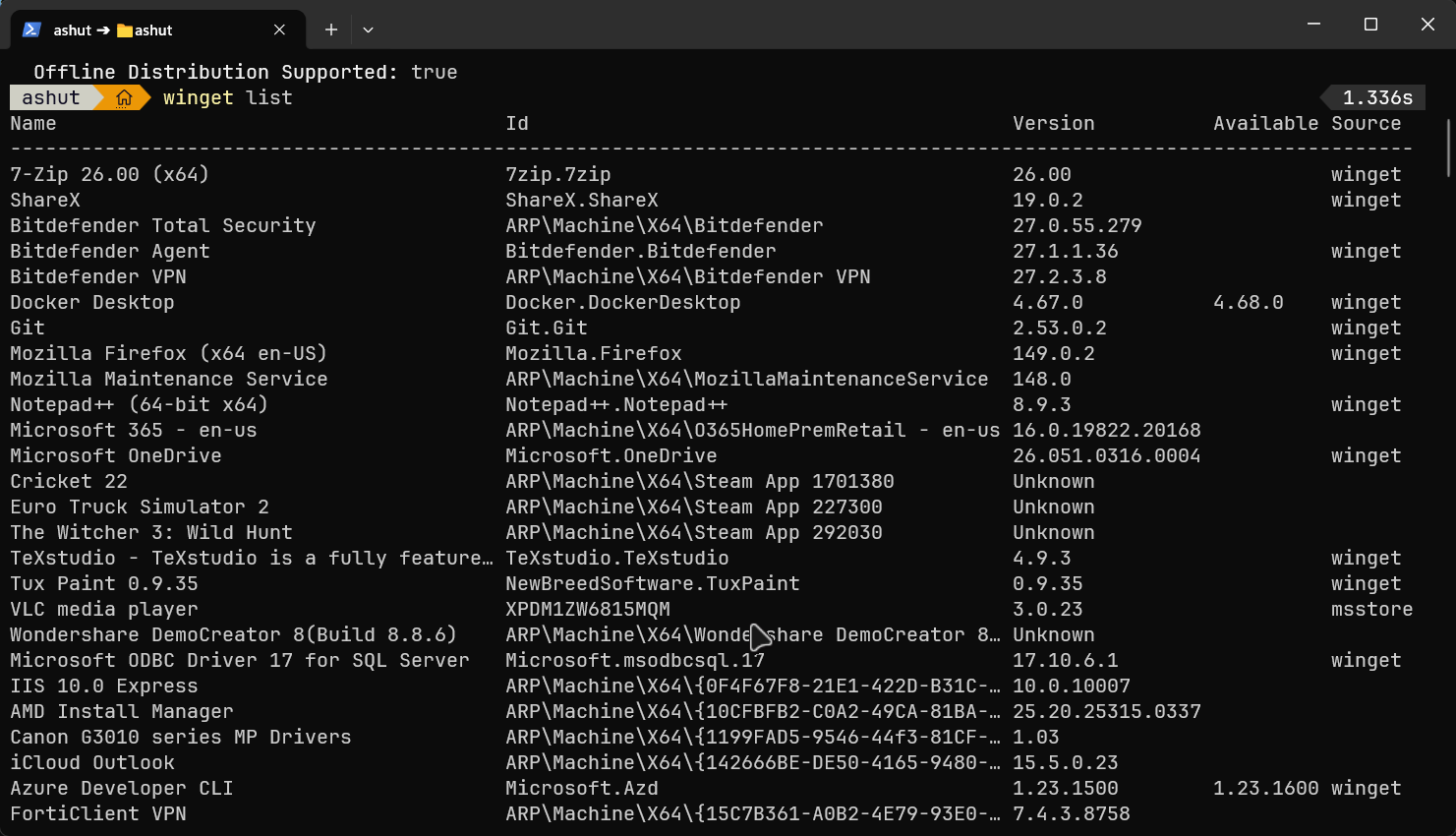
List Installed Packages
| |
Winget scans all software installed on your system — not just packages it manages — making it a useful inventory tool.
Export and Import Package Lists
One of winget’s most powerful features: export your entire app list and restore it on any machine.
Export:
| |
Import:
| |
The exported JSON looks like this:
| |
This is ideal for setting up a new PC or keeping a consistent dev environment across machines.
Useful Flags Reference
| Flag | Description |
|---|---|
--silent / -h | Suppress install UI and prompts |
--version | Target a specific version |
--id | Match by exact package ID |
-e | Exact match (combine with --id) |
--source | Specify source (winget, msstore) |
--location | Custom install directory |
--accept-package-agreements | Auto-accept license agreements |
--accept-source-agreements | Auto-accept source terms |
--interactive | Force interactive install mode |
--log | Write install log to a file |
--force | Re-install even if already installed |
Real-World Example: Bootstrap a Dev Machine
Here’s a PowerShell script to set up a complete dev environment in one shot:
| |
Save as setup.ps1 and run it on any fresh Windows install. Combine with winget export / winget import to keep machines in sync.
Managing Sources
Winget supports multiple package sources. By default it uses the winget community catalog and the Microsoft Store.
| |
Tips
- Use
--idwith-e(exact match) to avoid ambiguity:winget install --id Git.Git -e - Schedule
winget upgrade --all --silentas a Windows Task to keep apps updated automatically - Browse available packages at winget.run — it generates install commands for you
winget listshows ALL installed software on the machine, not just winget-managed packages — useful for auditing
Conclusion
Winget makes Windows feel like a first-class developer platform. It’s built in, actively maintained by Microsoft, and backed by a large community package catalog. Whether you’re bootstrapping a new machine, keeping software current, or scripting repeatable environments, winget is the right tool — and it’s already on your system.
Start with winget search to explore what’s available, and replace your next manual installer download with a single command.