Most developers spend more time inside their editor than anywhere else. Yet for years the dominant choices have been Electron-based tools — powerful, extensible, but notoriously heavy. Zed challenges that assumption. Built entirely in Rust by the creators of Atom and Tree-sitter, Zed is a code editor that opens instantly, scrolls at 120fps, and ships real-time collaboration as a first-class feature.
What Is Zed?
Zed is an open-source, GPU-rendered, high-performance code editor for macOS and Linux (Windows support is in progress). It was created by Nathan Sobo, Max Brunsfeld, and Antonio Scandurra — the same team behind GitHub’s Atom editor and the Tree-sitter parsing framework.
Zed is written entirely in Rust and renders its UI on the GPU using a custom framework called GPUI. This means it sidesteps the Electron/Chromium overhead that burdens most modern editors.
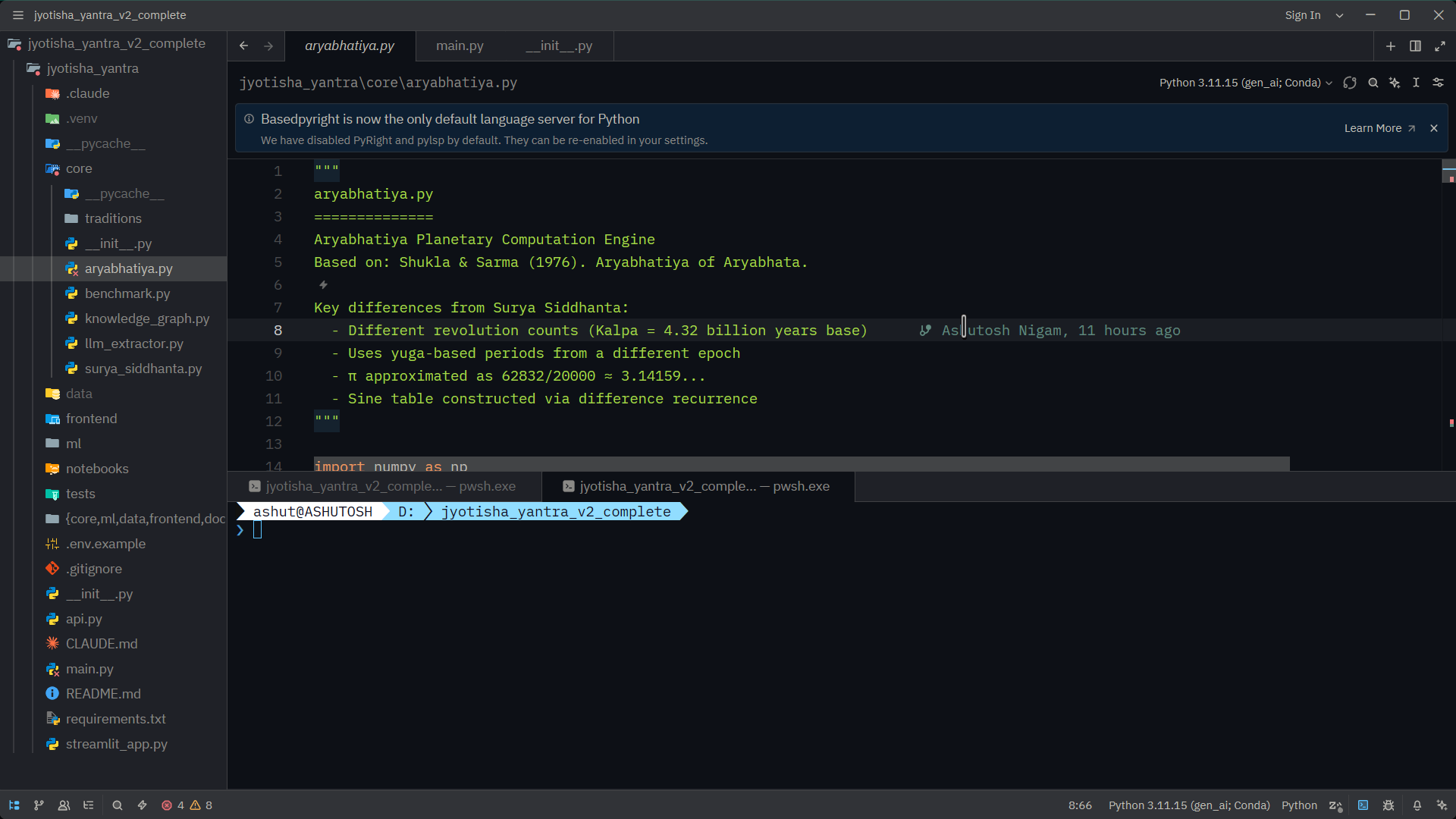
Key goals of the project:
- Performance — startup in milliseconds, no jank, no lag
- Collaboration — real-time multiplayer editing built into the core
- AI integration — inline assistant, context-aware completions, chat panel
- Simplicity — minimal UI, keyboard-first, no plugin bloat
Zed vs. VS Code vs. Neovim
| Feature | Zed | VS Code | Neovim |
|---|---|---|---|
| Runtime | Native (Rust + GPU) | Electron (Chromium) | Native (C) |
| Startup time | ~50ms | ~500ms–1s | ~20ms |
| Memory usage | ~100MB | ~400–800MB | ~30MB |
| Real-time collab | ✅ Built-in | Via extensions | ❌ |
| AI assistant | ✅ Built-in | Via Copilot ext. | Via plugins |
| Extension ecosystem | Growing | Massive | Large (Lua) |
| Language server (LSP) | ✅ Native | ✅ Native | ✅ Native |
| Tree-sitter syntax | ✅ Native | Via extension | ✅ Native |
| Open source | ✅ Yes | Partial (VSCodium) | ✅ Yes |
| Windows support | 🚧 In progress | ✅ Full | ✅ Full |
Zed sits between VS Code and Neovim in philosophy: it has a graphical UI like VS Code, but the performance profile and keyboard-centric design closer to Neovim. It is not a VS Code replacement if you depend heavily on the VS Code extension marketplace — but it’s a compelling choice for developers who want speed and collaboration without sacrificing a modern editor experience.
Installation
macOS:
| |
Linux:
| |
This installs the zed binary to ~/.local/bin. Launch with:
| |
The UI at a Glance
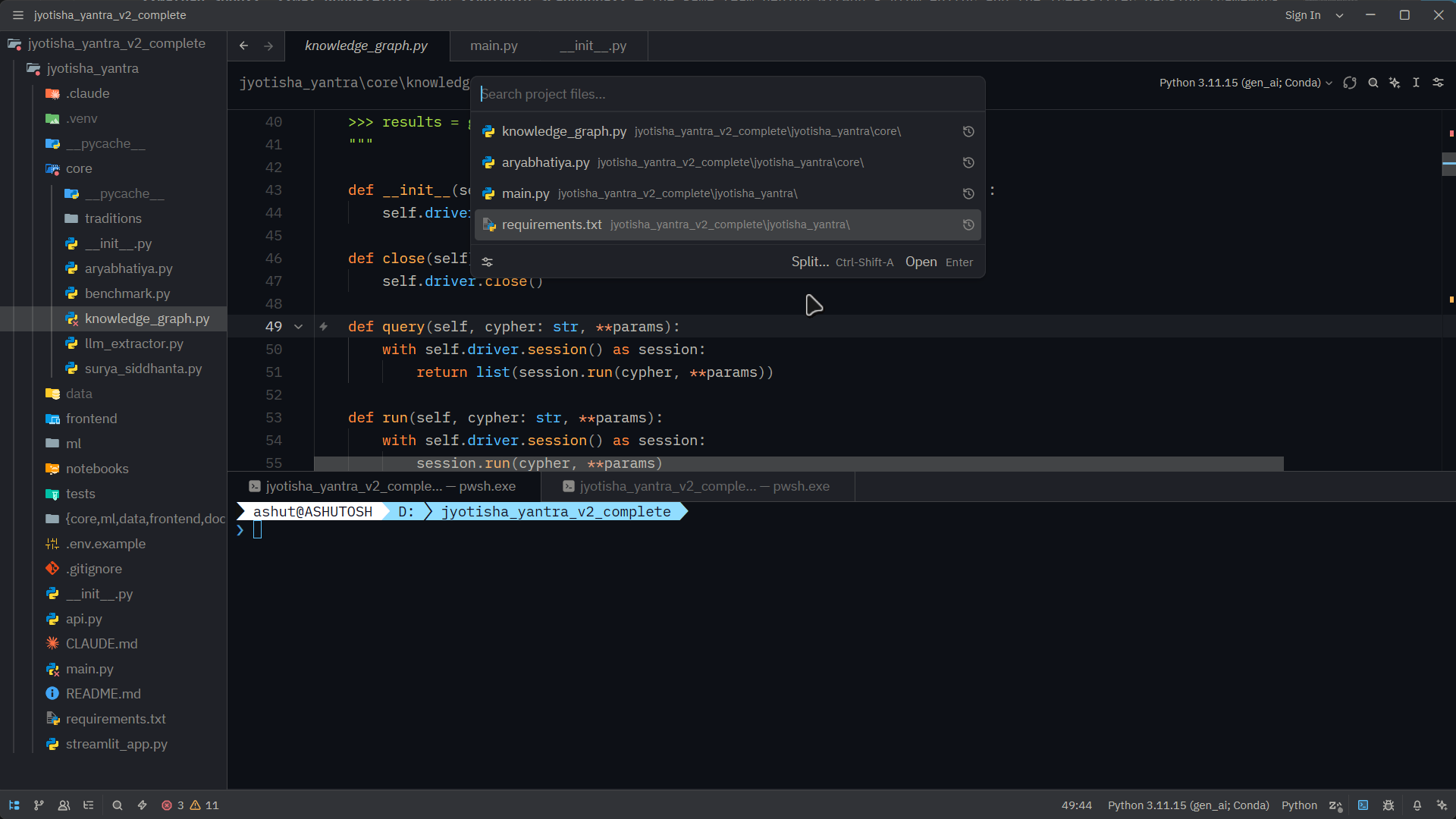
Zed’s interface is intentionally minimal:
- Project panel — left sidebar for files (toggle:
Cmd+Shift+E/Ctrl+Shift+E) - Tab bar — open files across the top
- Editor panes — split horizontally or vertically as needed
- Command palette —
Cmd+Shift+P/Ctrl+Shift+P— the hub for all commands - AI panel — right side, inline or floating
- Collaboration panel — channels and shared sessions
No status bar clutter, no icon rails, no notification toasts by default. Everything stays out of your way until you need it.
Key Features
1. GPU-Rendered Performance
Zed renders via the GPU using its custom GPUI framework. Every frame — scrolling, syntax highlighting, cursor movement — is drawn by the graphics card. The practical result: editing never feels sluggish, even in large files.
2. Real-Time Collaboration
Zed’s headline feature is multiplayer editing — think Google Docs for code. Open a channel, invite a collaborator, and you both see each other’s cursors and edits in real time with zero latency. No extension to install, no external service — it’s built into the editor and hosted through Zed’s servers.
# Share a project
Cmd+Shift+P → "Share Project"
# Or join a channel from the Collaboration panel
3. AI Assistant
Zed ships with a native AI assistant panel that works with multiple providers:
- Zed AI (hosted, requires account)
- Anthropic Claude (bring your own API key)
- OpenAI (bring your own API key)
- Ollama (local models, no API key)
- GitHub Copilot
The assistant integrates directly with your open files. You can ask it to explain code, refactor a function, generate tests, or answer questions — all without leaving the editor.
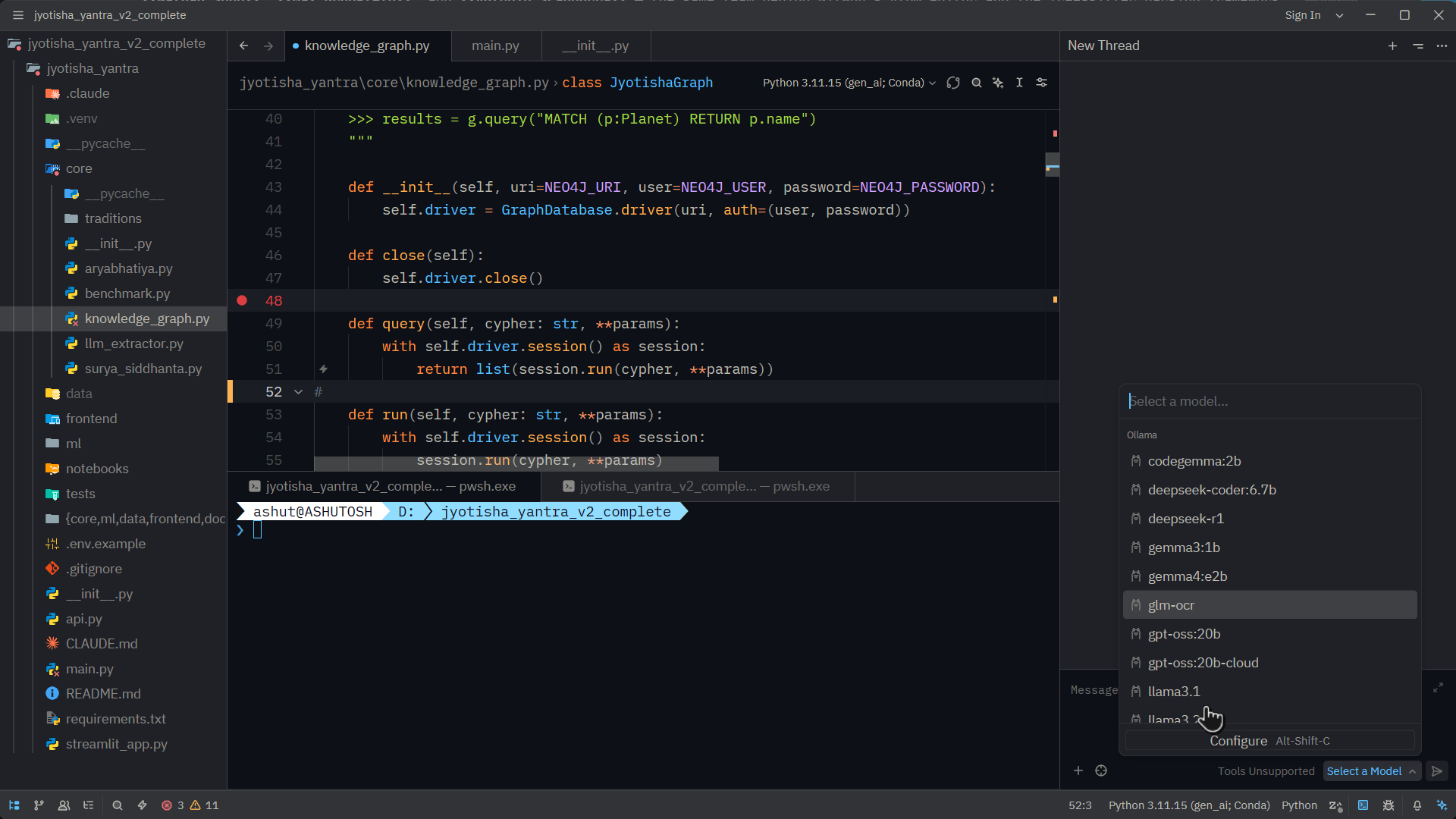
Configure the AI provider in settings:
| |
4. Language Server Protocol (LSP)
Zed has built-in LSP support for most major languages. Install a language extension and you immediately get:
- Inline diagnostics and errors
- Go-to-definition / find references
- Rename symbol
- Auto-imports and completions
- Hover documentation
No extra configuration needed for popular stacks — TypeScript, Rust, Python, Go, C#, Ruby, and more work out of the box after installing the relevant language extension.
5. Tree-sitter Syntax Highlighting
Zed uses Tree-sitter (created by the same team) for syntax highlighting and structural editing. This means:
- Accurate, incremental parsing — no regex-based highlighting bugs
- Structural selection (
Cmd+Shift+Up/Downto expand/shrink selection by AST node) - Consistent highlighting across all languages
6. Vim Mode
For those coming from Vim or Neovim, Zed ships a first-class Vim mode:
| |
Normal, Insert, Visual, and Command modes work as expected. Most common motions and operators are supported. It’s not a full Neovim emulation, but it covers the 95% case comfortably.
Configuration
Zed is configured via a single JSON file. Open it with Cmd+, or from the command palette → “Open Settings”:
| |
Essential Keyboard Shortcuts
| Action | macOS | Linux/Windows |
|---|---|---|
| Command palette | Cmd+Shift+P | Ctrl+Shift+P |
| Open file | Cmd+P | Ctrl+P |
| Toggle file tree | Cmd+Shift+E | Ctrl+Shift+E |
| Split pane right | Cmd+K, Right | Ctrl+K, Right |
| Go to definition | F12 | F12 |
| Find in project | Cmd+Shift+F | Ctrl+Shift+F |
| Toggle terminal | Ctrl+` | Ctrl+` |
| Open AI assistant | Cmd+? | Ctrl+? |
| Format document | Cmd+Shift+I | Ctrl+Shift+I |
| Toggle Vim mode | Settings → vim_mode | Settings → vim_mode |
Extensions
Zed supports extensions for language support, themes, and snippets. Browse and install from the command palette → “zed: extensions”.
Popular extensions:
- Rust, TypeScript, Python, Go, C#, Ruby — language packs with LSP
- One Dark, Catppuccin, Gruvbox, Tokyo Night — themes
- Prettier, ESLint — formatters and linters via LSP
The extension ecosystem is smaller than VS Code’s, but it grows quickly and covers the fundamentals for most development stacks.
When to Use Zed
Zed is a strong fit if:
- You want the fastest possible editing experience on macOS or Linux
- You collaborate with others and want real-time pair programming without external tools
- You want Claude, GPT, or local AI models integrated directly into your editor
- You’re a Vim user looking for a graphical editor that doesn’t feel slow
It’s not yet the right tool if:
- You’re on Windows (support is still in development)
- You depend on a specific VS Code extension with no Zed equivalent
- You need a mature plugin ecosystem for a niche language or framework
Conclusion
Zed is the most interesting new code editor in years. It doesn’t try to be VS Code — it tries to rethink what an editor should be when you design it from scratch in 2024, with performance, collaboration, and AI as core constraints rather than afterthoughts. If you spend most of your day in an editor, it’s worth an afternoon to try it.
Download at zed.dev — it’s free and open source.