“Which connection string is this thing actually using?”
I’ve asked that more times than I can count, usually with five files open that all set it to something different. An ASP.NET Core app reads appsettings.json, then appsettings.Development.json, then user secrets, then environment variables (including whatever the launch profile injects), then command-line arguments. Python services do their own version of this with .env, .env.local, per-environment files and the OS environment. The value your code ends up with is the result of a merge you never get to see. My usual way of finding out was to set a breakpoint and poke at IConfiguration, or dump os.environ and run the app.
I wanted the answer without running anything, so I built Effective Config Viewer. It does the merge itself and shows you the result in a VS Code panel.
I wrote about it in the Knowledge Hub first: Effective Config Viewer: See the Configuration Your .NET or Python App Will Load. This page covers the same project from the “things I’ve built” side.
What you see
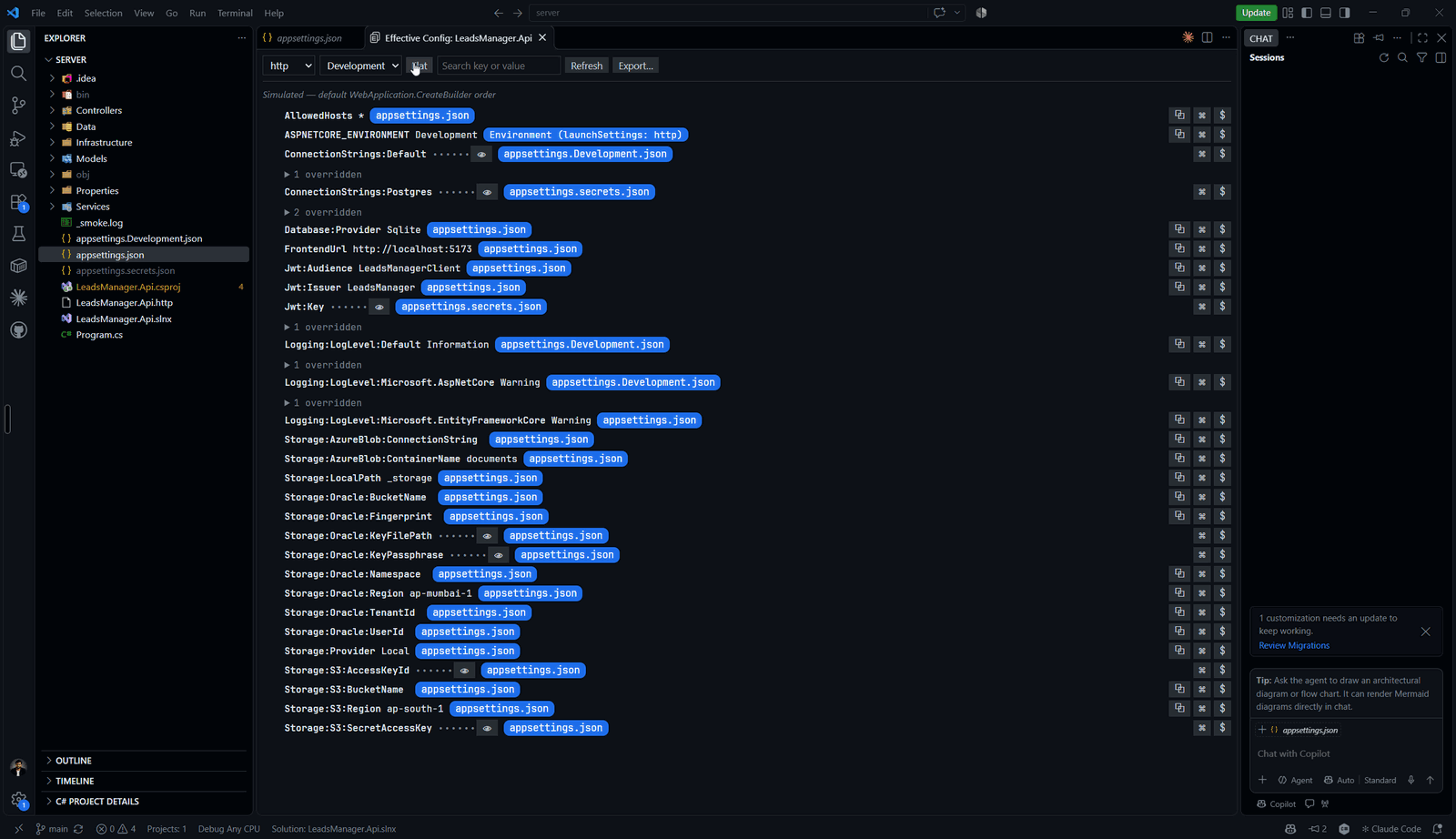
Pick a project, a launch profile and an environment. The panel shows the merged configuration for that combination, and for each value it tells you which layer won and which ones it overrode.
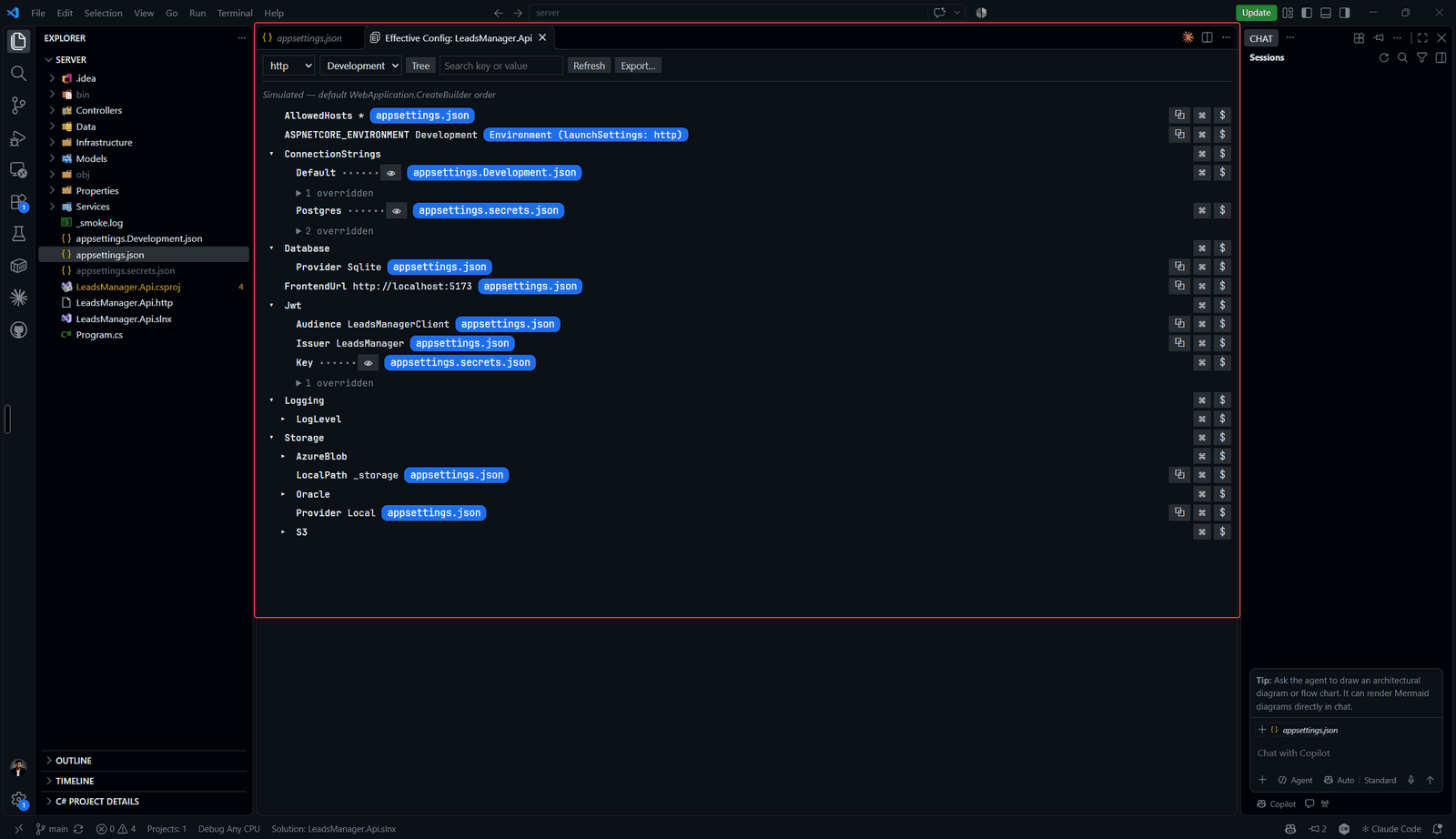
The tree view follows your config sections. The flat view lists everything as Section:Key = value, which is the format you actually want when you’re writing an environment variable override or hunting for a key:
Click a source and it opens that file at the line that set the value. When something looks off, you land right on the culprit.
A few other things it does:
- search by key or by value
- copy a value, a key path, or the environment variable name for a key (
ConnectionStrings:DefaultbecomesConnectionStrings__Default) - export the merged result as nested JSON or as flat
KEY=valuelines - refresh when a source file changes, without collapsing the nodes you had open or re-hiding secrets you’d revealed
It reads files and merges them. It never builds or runs your app. A nice side effect is that it works on a project that doesn’t even compile yet.
How .NET is merged
For .NET, a project is a .csproj with an appsettings.json next to it. I followed the default order from WebApplication.CreateBuilder, lowest priority first:
appsettings.jsonappsettings.{Env}.jsonappsettings.secrets.json, if it exists- User Secrets (Development only), located through the project’s
UserSecretsId - Environment variables: the filtered OS environment first, then the launch profile’s
- Command-line arguments from the profile’s
commandLineArgs
Launch profiles come from Properties/launchSettings.json. When you pick a profile, the environment from its ASPNETCORE_ENVIRONMENT or DOTNET_ENVIRONMENT gets selected for you, so choosing the usual https profile also picks Development.
If your app loads something extra like appsettings.Local.json, add it to effectiveConfig.dotnet.jsonLayers.
How Python is merged
Python doesn’t have one configuration system, so I picked the one most people use, python-dotenv, and copied its behaviour. A Python project here is any folder with a .env file and a project marker. Default order, lowest priority first:
.env.env.{env}.env.local.env.{env}.local- OS environment variables, filtered
- The launch profile’s
envFile, then itsenvblock, from.vscode/launch.json
By default the OS environment beats the files, which matches python-dotenv’s override=False. If your code calls load_dotenv(override=True), flip effectiveConfig.python.fileOverridesOs to true and the files move above the OS.
The .env parser follows python-dotenv’s rules, ${VAR} and ${VAR:-default} expansion included. Keys are split on __ into a tree, so DATABASE__HOST shows up under DATABASE. You can change the delimiter, or set it to an empty string to keep keys flat. The active environment is read from APP_ENV, ENV, ENVIRONMENT or PYTHON_ENV, in that order.
If a workspace has both kinds of project, they share one project picker and get tagged [.NET] or [Python].
Inside the merge engine
Both languages feed the same engine. Every source becomes a Layer with a list of entries, and mergeLayers folds them together in priority order.
Keys are case-insensitive, same as .NET’s IConfiguration. Whichever layer defines a key first decides how it’s cased in the panel, so Logging:LogLevel still reads Logging:LogLevel even when an all-caps environment variable overrides it.
I keep every contribution for a key, not just the winner. That list is what powers the override chain, so you can see that appsettings.Development.json replaced the base value and then an environment variable replaced that.
Sorting is done segment by segment like .NET does, so parents come before children and array indices sort as numbers instead of as text (no more 10 before 2).
Each language sits in its own folder with a ConfigProvider and an Ecosystem that handles project discovery and the picker tag. Adding another dotenv-style language is mostly a matter of extending DotenvProviderBase and registering it.
Keeping secrets out of sight
A tool like this is going to show connection strings and API keys, so masking had to be there from day one.
A value is masked if it came from a secret layer (user secrets, appsettings.secrets.json, or any configured layer with secret in its name) or if its key matches a mask pattern. The defaults are *Password*, *Secret*, *Key*, *TOKEN* and ConnectionStrings:*, and you can change them.
Masked values never reach the webview. The panel gets a placeholder, and the real value only crosses over from the extension host when you click to reveal that one value. The webview is its own browser context, and I didn’t want secrets sitting in it unless someone asked to see them.
Masking also follows variable expansion. Say your .env has DATABASE_URL=postgres://app:${DB_PASSWORD}@db/app. The expanded DATABASE_URL stays masked, because it was built from a masked key. The engine keeps re-checking until nothing changes, which handles chains of references. Sensitivity can only go from off to on, never back, so even a reference cycle finishes.
What it can’t see
It reproduces the default merge. Code that changes the merge is invisible to it:
- .NET: custom configuration providers, Azure Key Vault and Azure App Configuration, reordering in
Program.cs, aUserSecretsIdset inDirectory.Build.props, oldSQLCONNSTR_-style prefixes, and switch mappings. - Python:
.flaskenv, Django settings modules,os.environreads in code, conda’senvironment.yml, direnv, Poetry or pipenv auto-loading, and pydantic’ssecrets_dir.
If your app depends on any of those, the panel shows what the files and the environment say, and your app might end up somewhere else. If you stick to the framework defaults, you’ll get the same answer from both.
Try it
Install Effective Config Viewer from the Extensions view (Ctrl+Shift+X), or:
You can open the panel a few ways: Effective Config: Show Merged Configuration in the Command Palette, a right-click on any appsettings*.json, .csproj, .env or .env.* file in the Explorer, or the button in the editor title bar when one of those config files is open. Then choose the project, launch profile and environment at the top.
It’s MIT-licensed. If it merges your project differently from how your app really does, please open an issue with a small repro. Those are the bugs I most want to hear about.
- Marketplace: Effective Config Viewer
- Source: github.com/mrashutoshnigam/effective_config
- Original write-up: Effective Config Viewer in the Knowledge Hub