In Visual Studio you can unpin Solution Explorer or the Output window, and it folds away into a little tab on the edge of the screen. Hover over it and it slides back. The tools are always one move away, but the code gets the whole width.
VS Code doesn’t do this. The Side Bar, the Panel and the Secondary Side Bar are open or they’re closed, and I was hitting Ctrl+B and Ctrl+J all day to juggle them. So I wrote Pin & Hide.
I first wrote about it in the Knowledge Hub: Pin & Hide: Visual Studio-Style Auto-Hide Panels for VS Code. This page is the project version of that post.
How it feels to use
Install it and nothing changes. Everything starts pinned, on purpose, because I hate extensions that rearrange my editor the moment they load.
Once you unpin a part, it closes the next time you get back to work in the editor. When you need it again, open it the normal way (Activity Bar icon or shortcut). It stays put until you click, type or scroll in the editor, and then it’s gone again.
It works on all three areas:
- the Primary Side Bar, where Explorer, Search and Source Control live
- the Panel, with Terminal, Problems, Output and the Debug Console
- the Secondary Side Bar, which is where I keep Copilot Chat or Claude Code docked
Pinning things
Every view gets a pin button in its title bar, roughly where Visual Studio puts it. Filled pin means pinned. Outline pin means it’ll auto-hide. Click to flip it.
There’s also one pin icon in the status bar. It’s filled when everything is pinned and shows an outline with a number when some parts are set to hide:
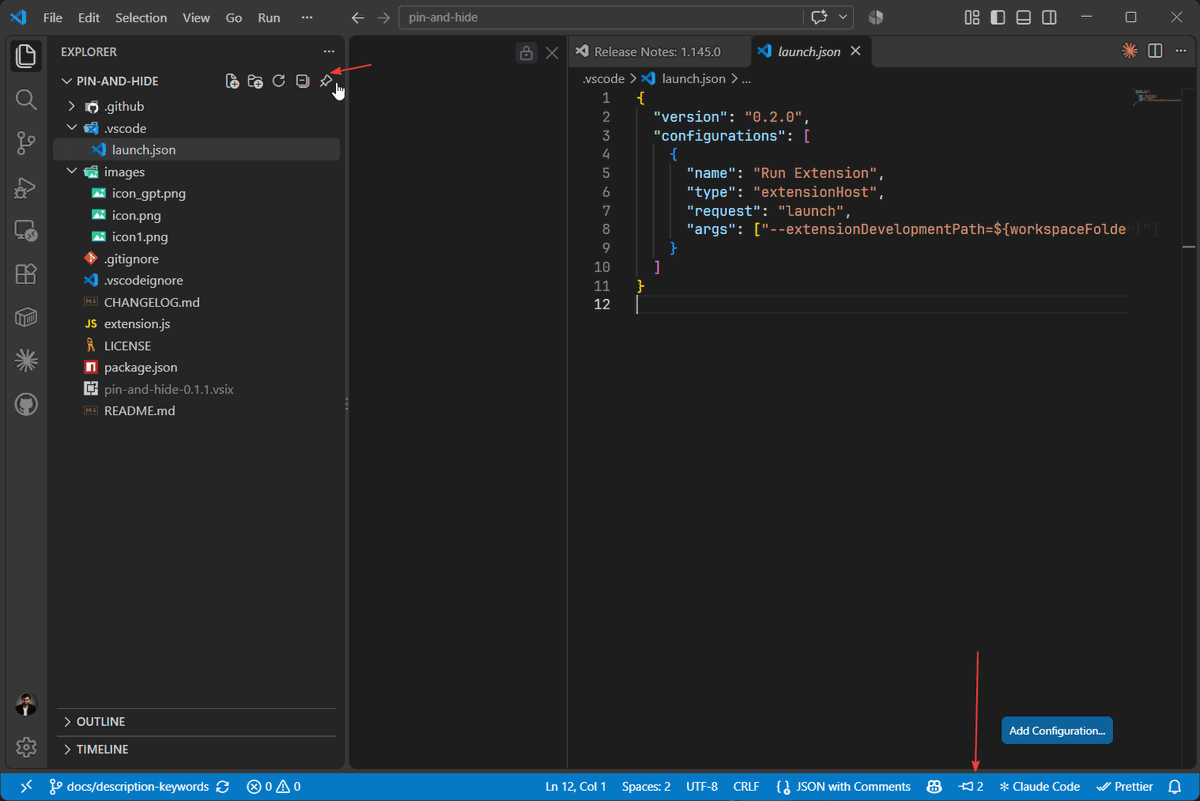
Click it and you get a checklist. Tick what you want pinned:
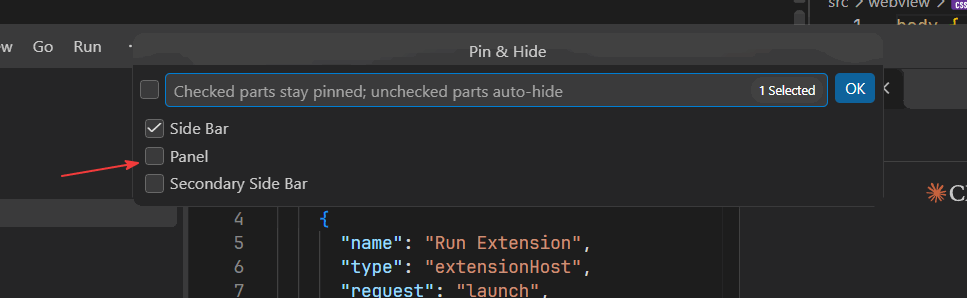
I added the status bar route because of an obvious problem I hit early on: once a part is hidden, its title bar button is hidden too. The Command Palette has the same options (Pin & Hide: Choose Pinned Parts… and Pin & Hide: Toggle Pin: …). Your choices are saved in the extension’s global state, so they survive a restart.
Deciding when to hide
This was the fun part, and also the part where I had to give up on copying Visual Studio exactly. Visual Studio hides a tool window when your mouse leaves it. An extension can’t do that, because the VS Code API won’t tell you where the cursor is or which part has focus.
So I use editor activity as the signal:
- A selection change from the mouse or keyboard counts. One caused by a command, like opening a file, Go to Definition or clicking a search result, doesn’t. Luckily the API tells you which kind it was.
- Scrolling the editor counts, unless it happens within 500 ms of one of those command-driven changes or an editor switch. Clicking a search result scrolls the editor, and without that grace period the Search view would close while you were still going through the results.
- Jumping into the terminal hides the unpinned side bars but leaves the Panel alone, since that’s where the terminal is.
- If the whole VS Code window loses focus, any pending hide is cancelled.
The hide waits autoHide.delay milliseconds (300 by default). The timer starts on the first interaction and later ones leave it alone. If every keystroke restarted it, steady typing would keep the side bar open until you paused.
The pin state is checked again when the timer fires, so if you pin something during that 300 ms it stays open. Closing is done with VS Code’s own workbench.action.closeSidebar, closePanel and closeAuxiliaryBar commands.
The pin buttons are plain view/title menu contributions. I set a context key per part (autoHide.sidebarPinned and friends), and package.json shows either the pin or the unpin command based on it. No webview, no custom UI. The whole thing is a single JavaScript file with zero dependencies.
What it can’t do
Some limits come straight from the extension API, and I’d rather be upfront about them:
- Parts snap shut. There’s no way for an extension to animate a slide-out.
- Moving your mouse out of the Side Bar does nothing by itself. It hides when you click, type or scroll in the editor.
- If you click exactly where the caret already is, VS Code doesn’t fire a selection event, so nothing happens.
Try it
Search for Pin & Hide in the Extensions view (Ctrl+Shift+X), or:
Then unpin whatever you only open now and then.
It’s MIT-licensed. Releases are automated with a GitHub Actions workflow that bumps the version, tags the commit, publishes to the Marketplace and cuts a GitHub Release.
- Marketplace: Pin & Hide
- Source: github.com/mrashutoshnigam/pin-and-hide
- Original write-up: Pin & Hide in the Knowledge Hub